True Collaborative TFL Feedback Collection
Collecting TFL feedback and making decisions about that feedback can be a tedious process. Kicking off a review typically involves securing a network share, notifying reviewers that the share is available to them (and for how long), then waiting for emails to fly into your basket and handmarked printouts to arrive at your desk.
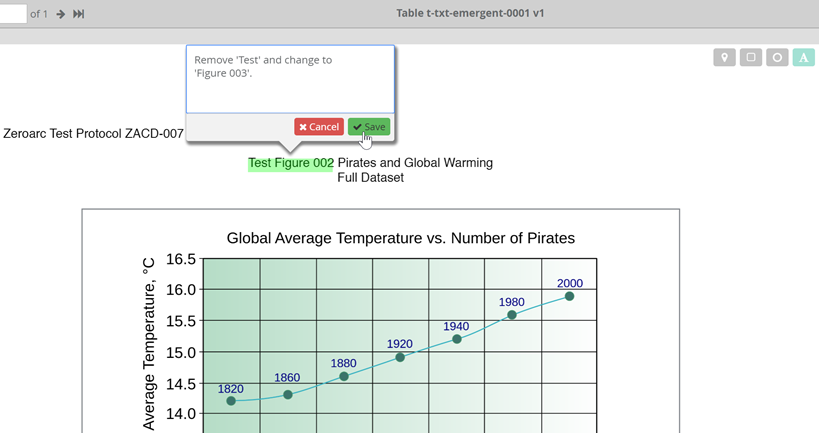
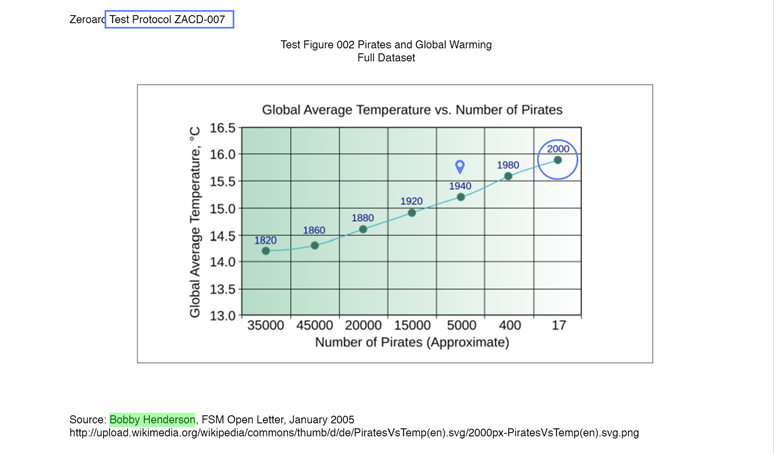
Candid solves all of these problems, but in this post I want to focus on how we get the feedback (comments) into the system. We wanted to see if we could make a tool allowing reviewers to comment electronically on a TFL just like adding comments to a doc in Microsoft Word. What if reviewers had a way to add comments by 'lassoing' text or highlighting directly on the TFL, or pin point marking exactly the point on a chart they have a question about.
There are many advantages to collecting feedback electronically with Candid. Comments are date time stamped and located in one place. All reviewers can see each other's comments (and have a discussion about it, if they choose). Statisticians can see all the feedback in real time. They can see which reviewers have provided feedback and which have not. They can also see who is finished and who is not. And, reviewers can indicate they have reviewed a TFL without having to add a comment. Finally, statisticians can close the commenting period, read through the comments, and make decisions about which are actionable and which are not.
We wanted to make a tool allowing reviewers to comment electronically on a TFL just like adding comments to a doc in Microsoft Word.
Allowing reviewers to provide feedback on TFLs electronically was our first major accomplishment when making Candid.
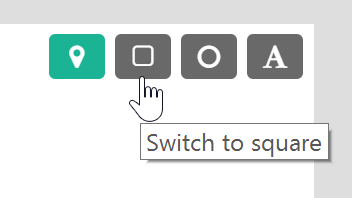
There are five different ways to add comments in the Candid review system.
- General Comment - you are free to add a comment without marking the document directly.
- Pin-point - using the pin-point drawing tool, you can pin-point an exact location (e.g., a data point on a chart).
- Square lasso - using the square drawing tool, you can drag your cursor to surround a portion of the TFL in the shape of a square.
- Circle lasso - using the circle drawing tool, you can drag your cursor to surround a portion of the TFL in the shape of a circle.
- Highlight text - using the highlight drawing tool, you can highlight text for the highlighter effect.
Once reviewers start adding comments to a TFL, the markup 'sticks' to the TFL, which means you can always go back to it for review if necessary. Also, Candid supports multi-page TFLs. Reviewers can page through a TFL adding comments to any page they need to. Candid will keep track of which page has what comments.
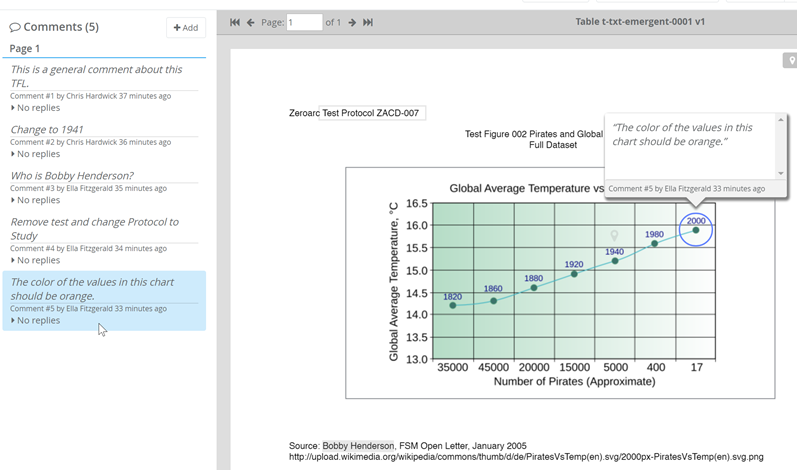
In the screenshot below you can see the comment list on the left and a marked up TFL on the right. Hovering your mouse over a comment in the thread or over the markup on the TFL will highlight the comment in blue and bring up the comment pop-up on the TFL. So reviewers and statisticians can easily match up the comment text with the location of the markup.
As we continue to put effort toward improving our TFL review system and welcome your comments.
Contact us to find out more about Candid or to share your stories about collecting TFL feedback on your analyses.